This article will walk you through the process of integrating your Cartwheel account with Toast when signing up directly with Cartwheel.
1. Activate the Cartwheel Integration in Toast.
Log in to your Toast account and navigate to the Integrations section of Toast Web using the left-hand navigation menu. Then, select Integrations management > Browse & purchase integrations.
Search for “Cartwheel”. Once you find it, click on “Add Now”.
Note: You may activate the Cartwheel integration in Toast before or after engaging with the Cartwheel team, as it is generally available (GA) on the Toast Integrations page.
2. Enable Self-delivery in Toast
In the Toast account, navigate to the "Takeout&Delivery" section. Then find "Toast Online Ordering" > Delivery.
Click "My own delivery drivers" under the question "How do you want to deliver orders to guests?"
This will trigger an email notification to the Cartwheel team to set up your Toast on Cartwheel.
Note: to integrate Cartwheel with Toast, for U.S. Customers only, Toast Partner Connect (integrations) access must now be purchased with the Restaurant Management Suite Essentials Package ($50/month/location) in Toast Shop (note this link is only accessible to customers with a Toast log-in).
3. Enable Toast Integration via Cartwheel Support or Onboarding Manager
We will activate your integration on our side and let you know.
4. Optional - Import Drivers
In the Toast Integrations section, you have the option to automatically import drivers from Toast by selecting "Create Drivers". This will import employee information from Toast and set them up as drivers in Cartwheel.
Navigate to Properties > Global Settings > Integrations > Toast Properties > Sync Drivers.
You can select which roles in Toast should be eligible for driver creation in Cartwheel, giving you more flexibility in how drivers are managed across systems.
You can also enable the Automatically Create New Drivers option. When enabled, Cartwheel will check Toast every 30 minutes and:
-
Create new drivers in Cartwheel if they’ve been added in Toast.
-
Deactivate drivers in Cartwheel if they’ve been removed from Toast.
Important: If a driver was created through the Toast integration but later disabled in Cartwheel, Cartwheel will not notify Toast of this change. In such cases, you’ll need to manually remove the driver in Toast.
Then, open the "Driver List" below, a window will appear showing whether any drivers are missing information on the Toast side. If they are, the driver cannot be created until the missing details are filled in within Toast.
Once all the required information is complete, confirm the action — the drivers will be added to Cartwheel, and they’ll receive a text message with their password.
By creating drivers in Cartwheel through the Cartwheel <> Toast integration, Toast will provide us with unique employee IDs for these drivers. When you assign a driver in Cartwheel, we’ll link this information with the respective order by matching the Toast employee ID with the Toast order ID. This data will then be relayed back to Toast, allowing them to associate the driver with the order in their system. Consequently, you will have the ability to efficiently manage driver payouts at the end of each day.
Note: If a driver delivers for multiple locations, you’ll need to create separate profiles for them and assign each profile to the appropriate location in Toast. Additionally, make sure their Toast driver profile is fully completed, including their phone number and email address.
5. Optional - Treat Service Charges as Tips
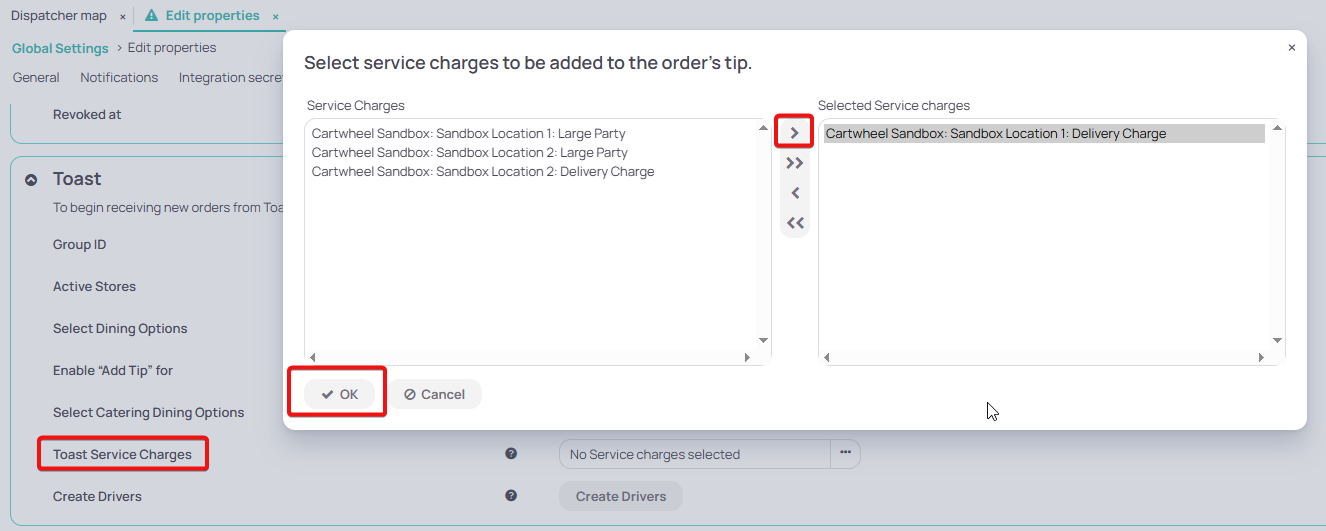
If you have Service Charges marked as Gratuity in Toast, they can be included in the subtotal. However, you can specify which Service Charges should be treated as tips. These selected charges will be added to the tip amount and excluded from the subtotal in the order details.
To configure this, go to: Properties > Global Settings > Integrations > Toast Integration > Toast Service Charges.
Congratulations! You have successfully onboarded your Cartwheel account with Toast.
If you have any questions or need further assistance during the onboarding process, please don't hesitate to reach out to our support team at support@trycartwheel.com.
Comments
0 comments
Please sign in to leave a comment.